tv.lumbung.space
What is this?
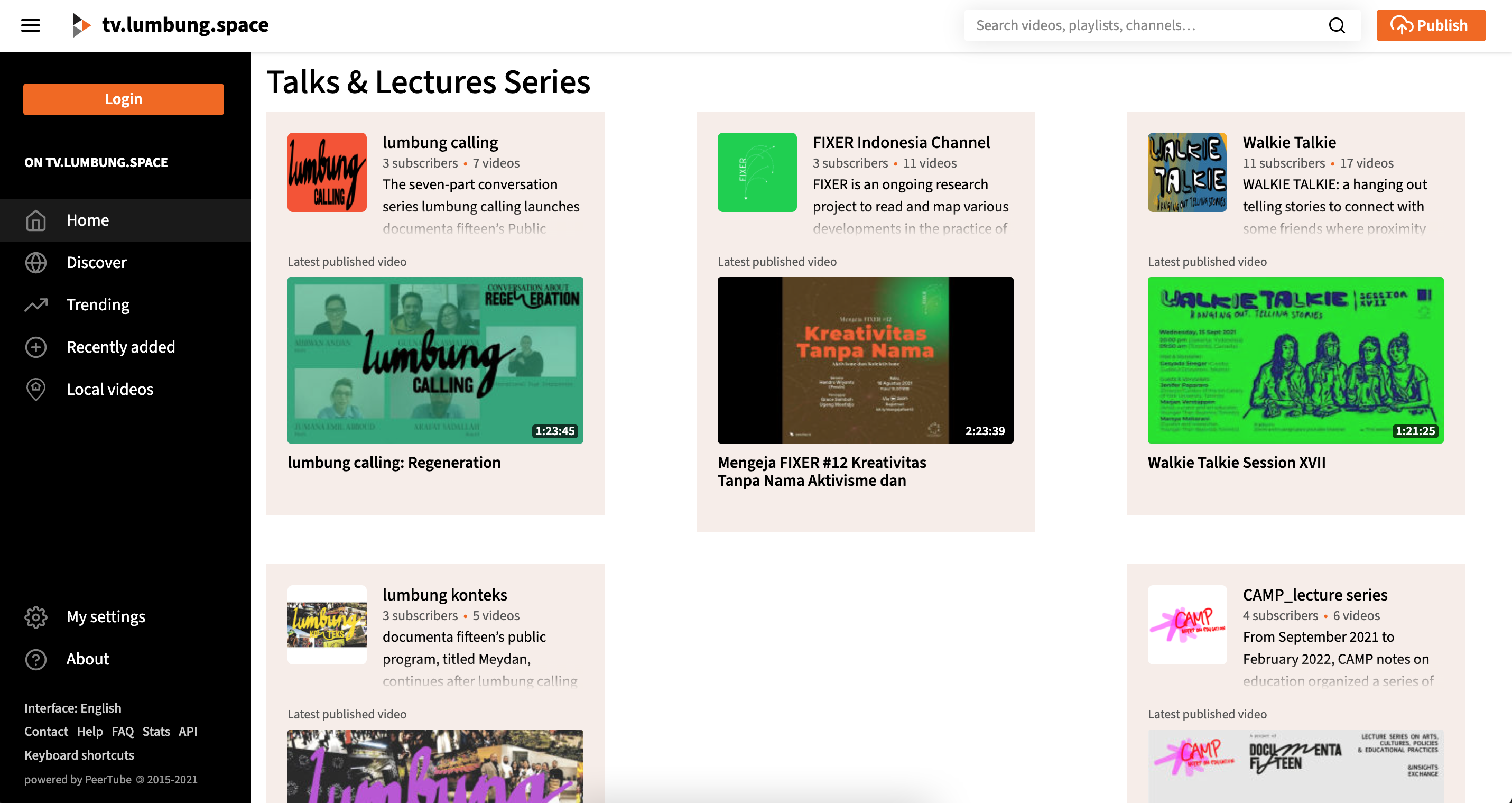
tv.lumbung.space is an online tool that allows lumbung inter-lokal and lumbung artists to stream and upload videos that can also be archived using the PeerTube platform.
How do I log in?
Visit tv.lumbung.space
Click “Login”
Click “Or sign in with: login.lumbung.space“
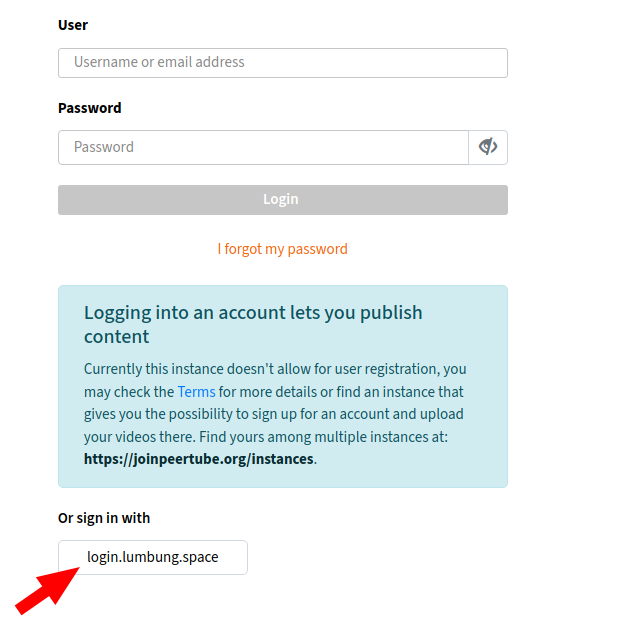
Or sign in with...
How to upload/publish a video?
To publish a video you have to click the Publish button in top right corner.
Upload a file
Once you have to click the Publish button in top right corner:
select which channel you want to upload your video (can be done/change after upload);
select privacy settings for this video (can be done/change after upload);
click Select file to upload button.
Import with URL
click the Publish button in top right corner;
click Import with URL tab;
paste your video's url into URL field;
select which channel you want to upload your video (can be done/change after upload);
select privacy settings for this video (can be done/change after upload);
click Import button.
How to start a live stream?
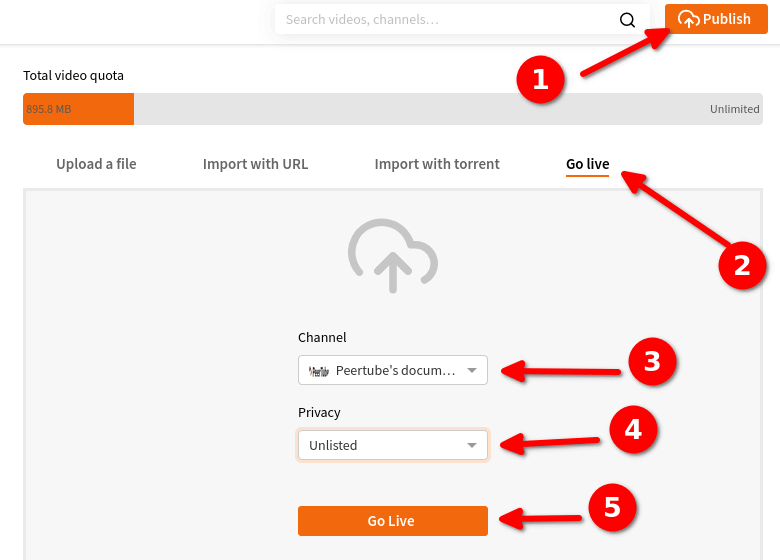
click the Publish button in top right corner;
click Go live tab;
select which channel you want to publish your live;
select privacy settings for this live;
click Go Live button.
In the publication form, you have a Live settings tab that allows you to:
See the RTMP URL to put in your streaming software
See the live stream key associated to this live, to put in your streaming software. It is a private key, allowing anyone to stream a video in this live so don't share it with anyone!
Choose to automatically publish a replay of your live if the administrator enabled this option: when your live will end, PeerTube will create a video replay behind the same URL of your live
Enable the permanent live mode. In this mode, you cannot save a replay of your live but you can stream multiple times in the live video: the live URL won't change between two live events, and a stream disconnection won't end the live
Now you're ready to go live!
Live examples
With OBS
In this example we'll use OBS software to send a stream to PeerTube, but you can use any streaming software that can stream videos using the RTMP protocol.
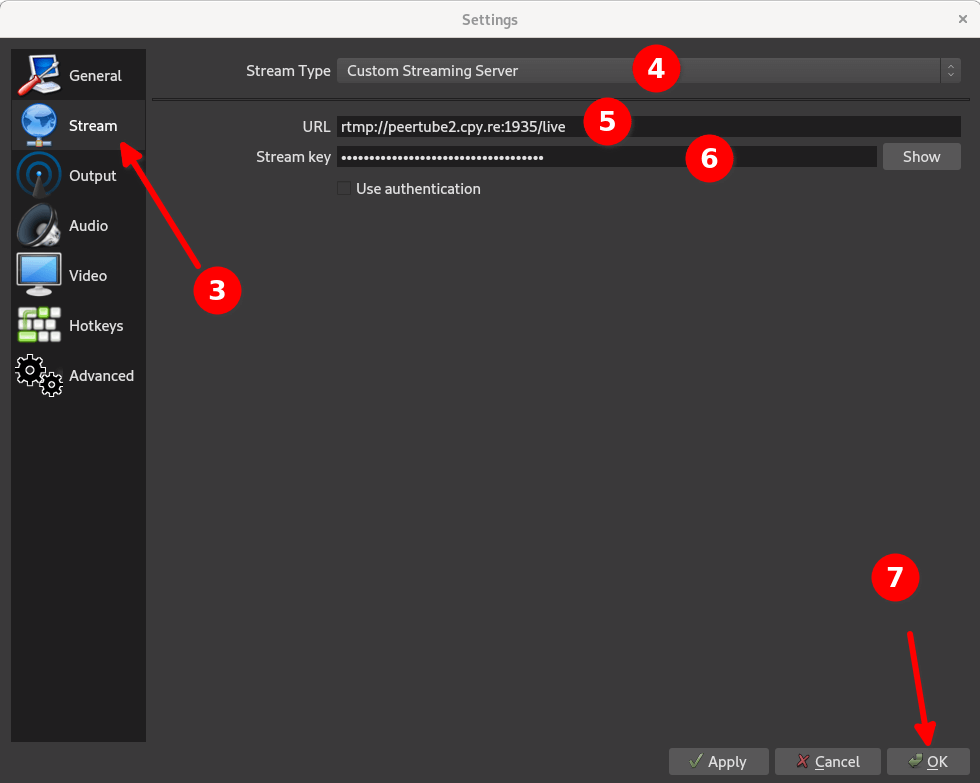
Open OBS on your computer
Click on Settings (or: File in top bar > Settings)
Click on Streams tab
Choose Custom service
Fill Server input using the PeerTube RTMP URL
Fill Stream key input using your live stream key
Do not use authentication and click on OK
Stream whatever your want and click on Start streaming. After some time, you'll be able to see your live in the PeerTube interface.
With Jitsi Meet
Create a chat room on a Jitsi server
Click on the menu (3-points icon at the bottom-right of the screen)
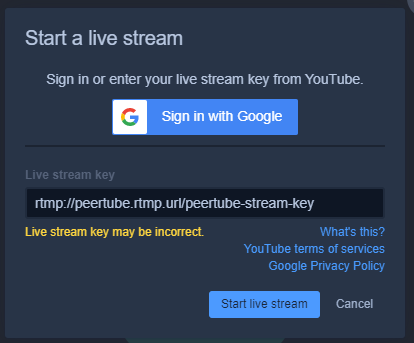
Click on Start live stream
You will be asked a Youtube live stream key. Actually, there is a way to make it work with PeerTube : simply paste the PeerTube RTMP URL followed by the PeerTube live stream key (you may have to add a slash in-between).
Click Start live stream, you may heard "The stream has started" and see your live on PeerTube after some time.

Jitsi Start live stream menu
With Zoom
We are trying to write this documentation... work in progress… send help 🙏
WARNING you must have a pro Zoom account to do live streaming!
The following documentation is a good start:
In general, you need to:
Set up your Zoom account/group/meeting to support live streams
Create a new live stream on tv.lumbung.space to get the URL/key details
Fill in the URL/key details in the new scheduled meeting in Zoom
Video Fields
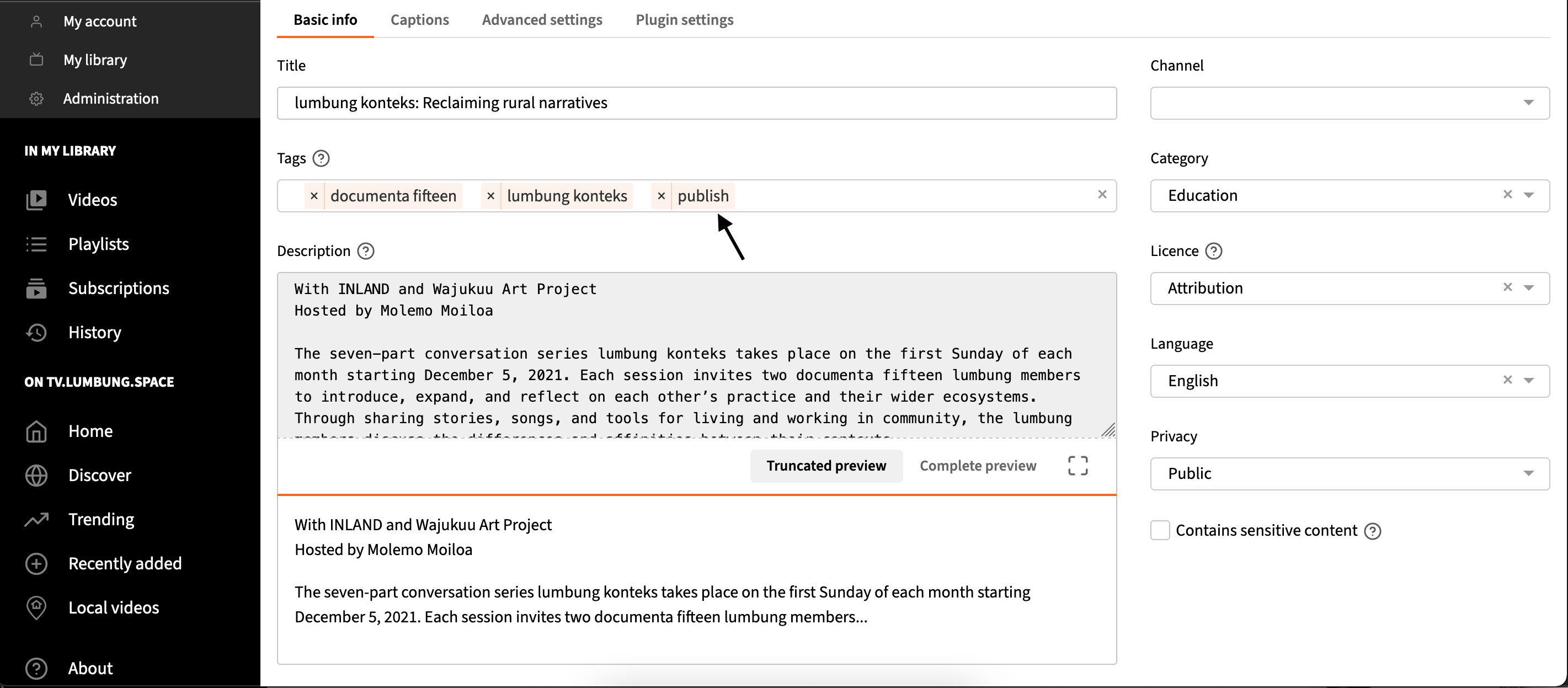
Basic Info
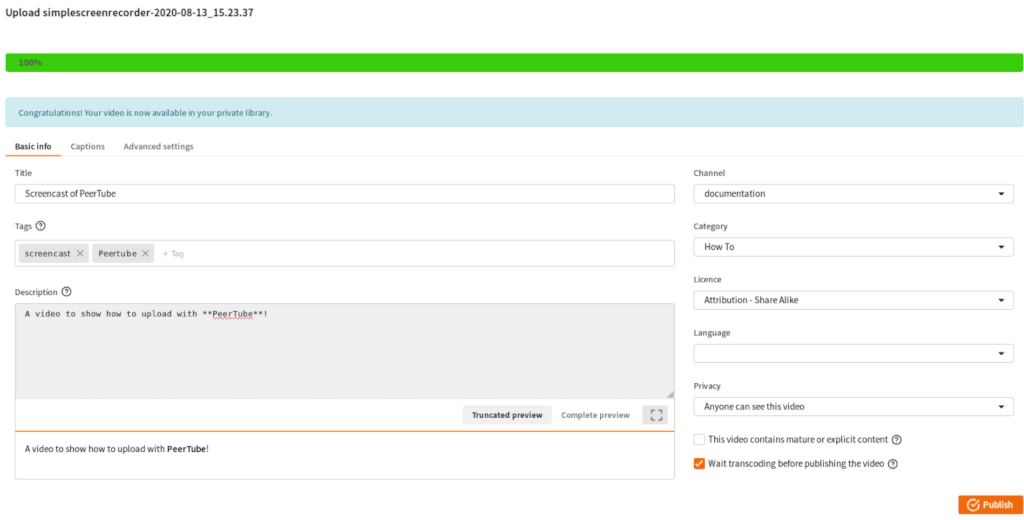
Title: the name of the video
Tags: tags can be used to suggest revelant recommandations. 5 tags maximum. You have to press enter to add one;
Description: text you want to display above your video (supports markdown) - you can see how it looks above;
Channel: in which channel you want to add your video;
Category: what kind of content is your video (Activism? How to? Music?);
Attribution,
Attribution - Share Alike,
Attribution - No Derivatives,
Attribution - Non Commercial,
Attribution - Non Commercial - Share Alike,
Attribution - Non Commercial - No Derivatives,
Public Domain Dedication;
Language: what is the main language in the video;
Privacy: public, internal, unlisted, private. See what it means;
Contains sensitive content? Some instances do not list videos containing mature or explicit content by default.
Captions
This tab allows you to add subtitles to your video. To add one, you have to:
go to Captions tab;
click Add another caption button;
select the caption language in the list;
click Select the caption file button;
browse into your computer file to select your .vtt or .srt file;
click Add this caption button;
click Update button.
Your caption is now available by clicking Subtitles/CC and selecting the language.
To delete a caption you have to:
click Delete button in front of the language you want to delete;
click Update button.
Advance Options
This tab allows you:
to edit your preview image;
to add a short text to tell people how they can support you (membership platform...);
change the original publication date;
disable/enable video comments;
disable/enable download of your video.
Click Update button to save your new settings.
Video confideality options
Public: your video is public. Everyone can see it (by using search engine, link or embed);
Internal: only authenticated user having an account on your instance can see your video. Users searching from another instance or having the link without being authentifaced can't see it;
Unlisted: only people with the private link can see this video; the video is not visible without its link (can't be found by searching);
Private: only you can see the video.
How to make your video shown on lumbung.space’s website?
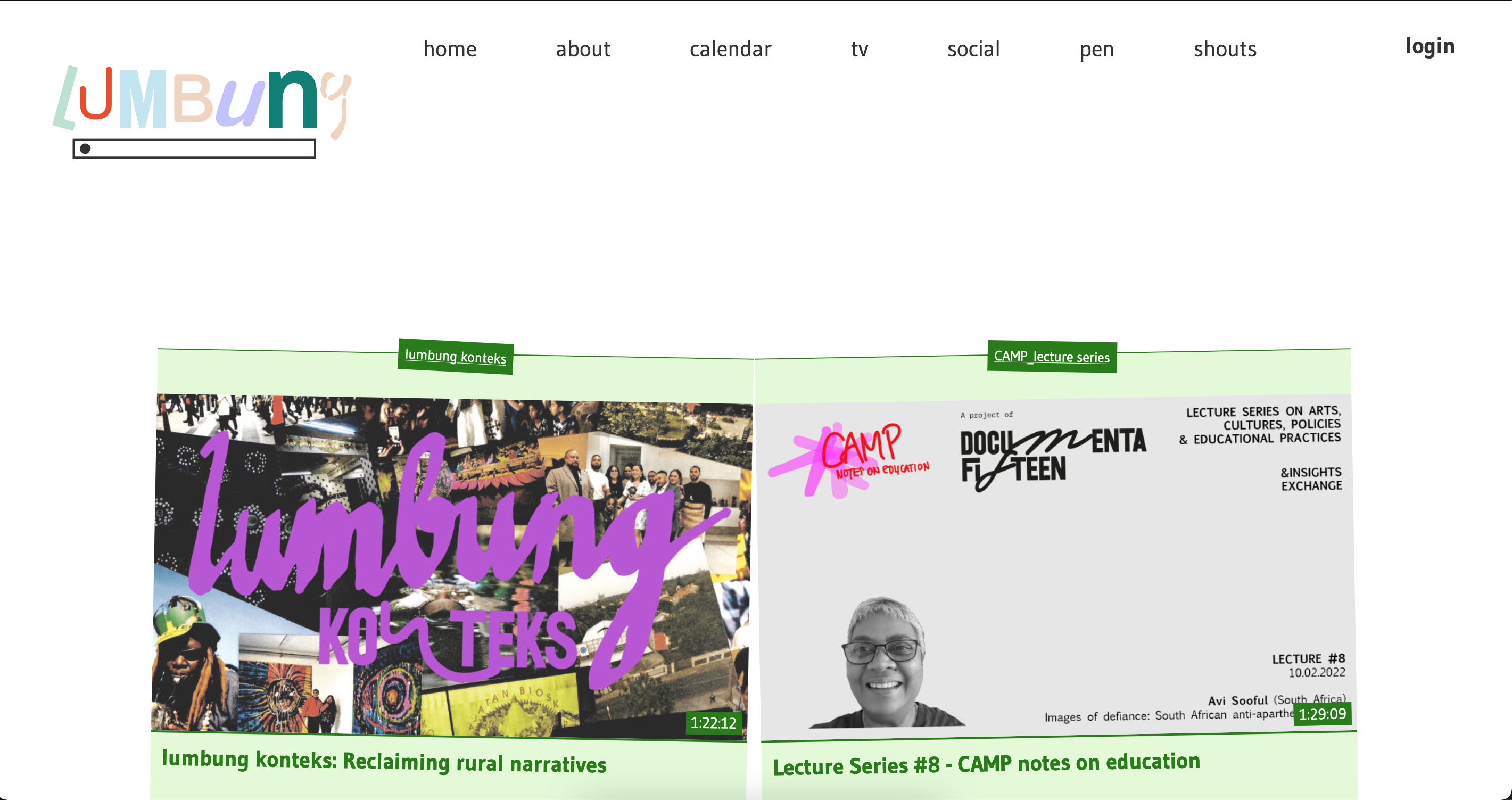
After you publish your video/live stream on tv.lumbung.space, it also possible to show it on lumbung.space’s website!
To do so go edit/update the video.
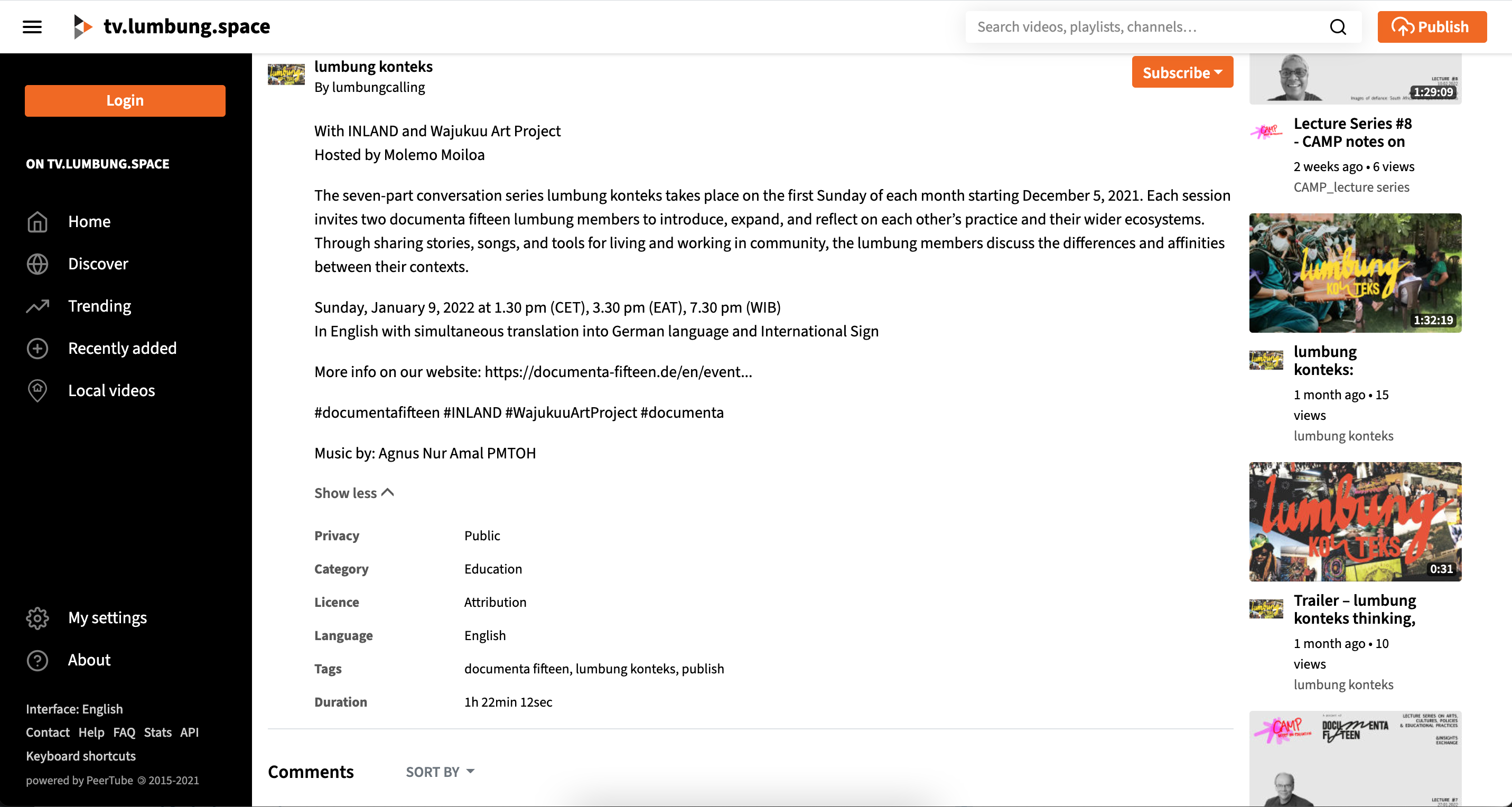
In "Basic Info" the "Tags" column, add the word "publish" as one of the tags. Then make sure the video privacy is set to “Public”. The video will be appear on the lumbung.space in few minutes.