nongkrong.lumbung.space
What is this?
This is the chat system for lumbung.space. It’s the easiest way to find other members and check in to see what is going on. You can have private chats, group chats, upload and share files and have both 1-to-1 video & group calls, so you can do your meetings here too!
You can use it both on your phone or on your computer.
Under the hood it uses the Matrix protocol.
How do I log in?
You have two options:
You can use your browser to directly login at nongkrong.lumbung.space.
Alternatively you can use it on your phone or desktop using an app.
Approach 1. is easier & faster to do but once you close your web browser, you will not be logged in anymore and you won’t receive notifications if someone is chatting with you. Approach 2. is the best solution for using it on your phone as an app and getting notifications.
1. nongkrong.lumbung.space login
Visit nongkrong.lumbung.space
Log in with your lumbung.space details
That’s it! You’re done 🥳
2. Using a mobile or desktop app
Which app to use?
Android
Look for an app called Element - Secure Messenger by New Vector Limited in the Playstore:
https://play.google.com/store/apps/details?id=im.vector.app&hl=sv&gl=US
Alternatively if you use it that, you can find the app in F-Droid: https://f-droid.org/en/packages/im.vector.app/ or an app called FluffyChat https://f-droid.org/en/packages/chat.fluffy.fluffychat
iOS
Look for an app called Element in the appstore: https://itunes.apple.com/us/app/element/id1083446067?mt=8
alternatively you can look for an app called FluffyChat in the appstore:
Windows
https://element.io/get-started#download
MacOS
https://element.io/get-started#download
Linux
https://element.io/get-started#download
Signing in for the first time:
Open the app
Click “Sign in”
For the “homeserver”, click “Edit” to change it
By “Other homeserver”, type
lumbung.space, click “Continue”Click “Continue with login.lumbung.space”
Log in with your lumbung.space account on the web browser
Click “Continue” to create your account
That’s it! You’re done 🥳
Here is a short video to show these steps.
If you use another application than Element, the steps might be different steps but similar. The main point is to remember that your lumbung.space “homeserver” for your client is lumbung.space.
Signing in for the first time on Element Android, with pictures.
There are only a few steps.
Open Element
Press “I Already Have An Account”
In the screen with the login options, press the Edit button
In the screen that reads “Select your server”, fill in
lumbung.spaceand then press “Next”In the next screen press the button that says “Continue with login.lumbung.space”
It will then show you the lumbung.space login screen, where you can fill your username or email and your password. Press Sign In.
On the final screen it will show your account and username. Press continue to got the chat. Don’t forget to say Hi in the nongkrong room.
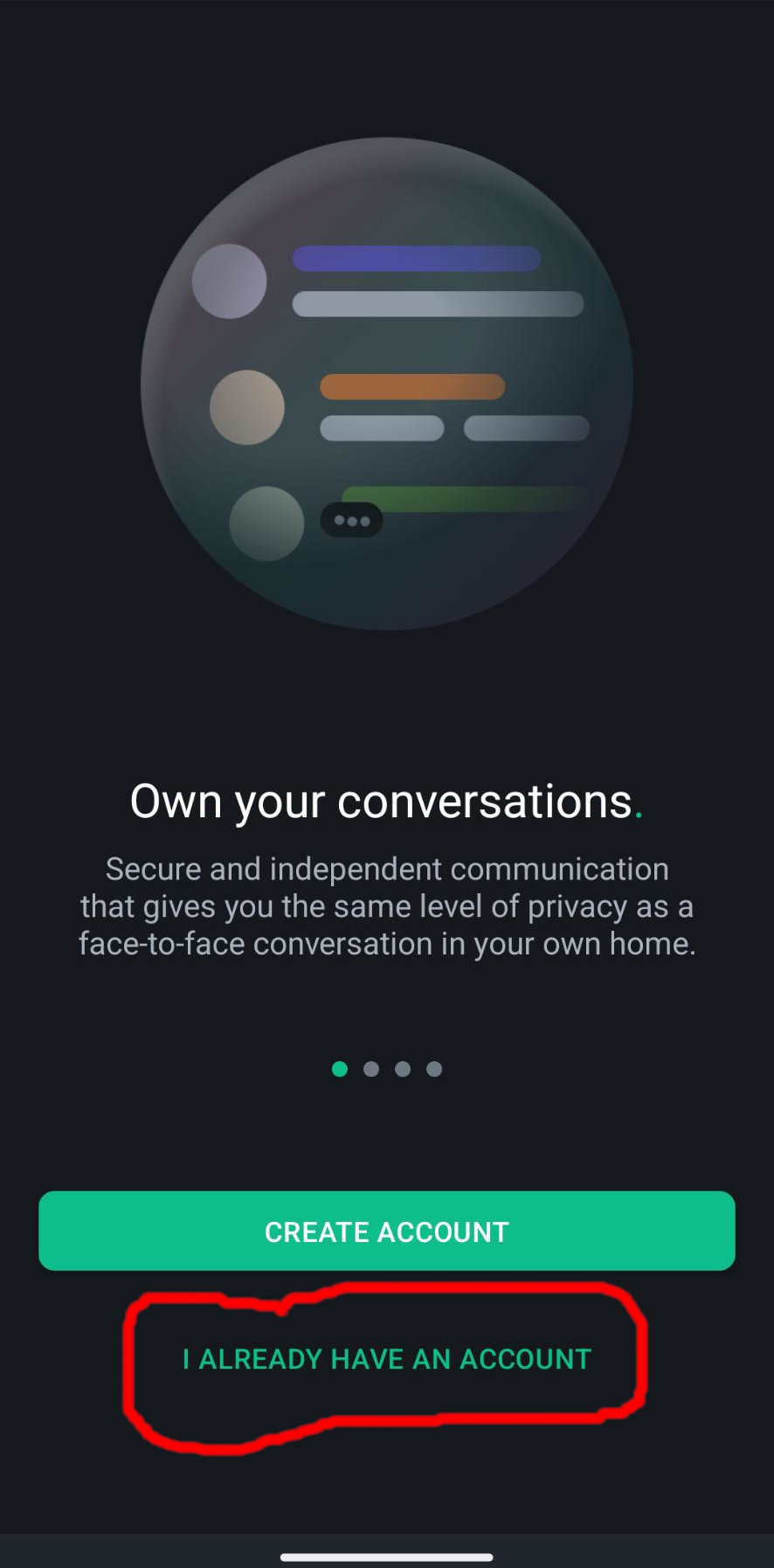
Once you open the Element app, it will ask you whether you make an account or already have one. Press "I ALREADY HAVE AN ACCOUNT"
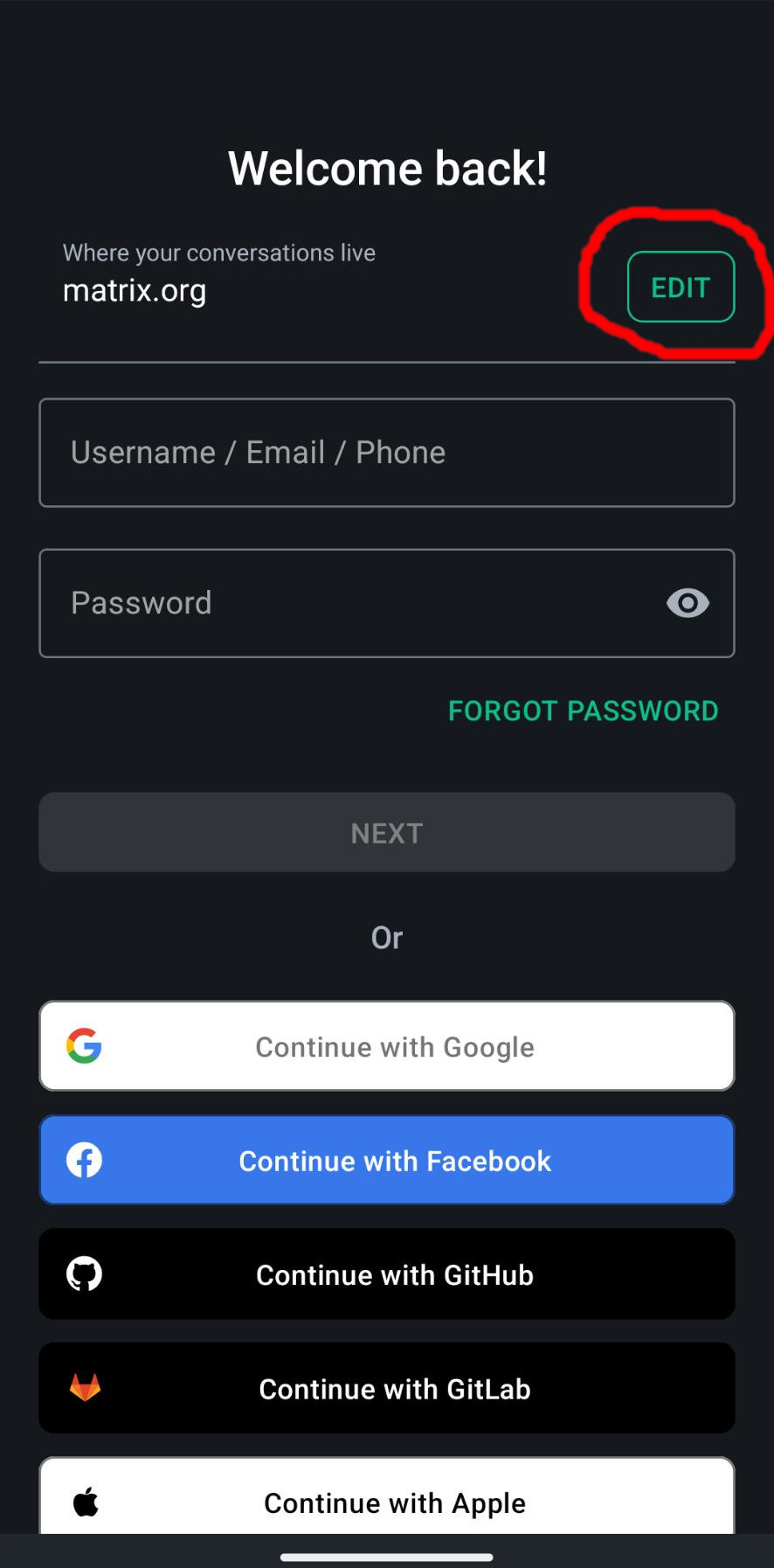
In the screen with the login options, press the Edit button
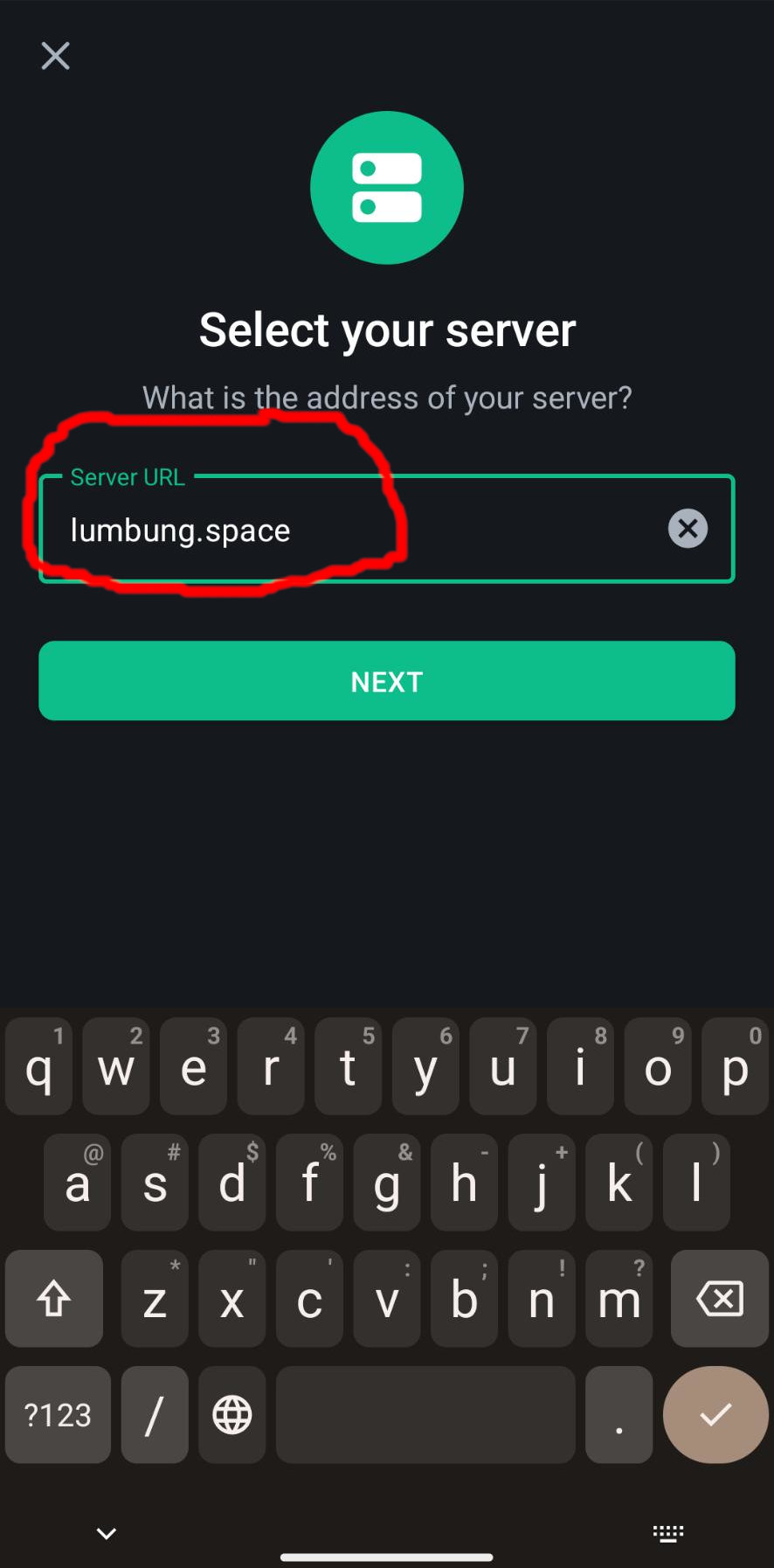
In the screen that reads “Select your server”, fill in lumbung.space and then press “Next”
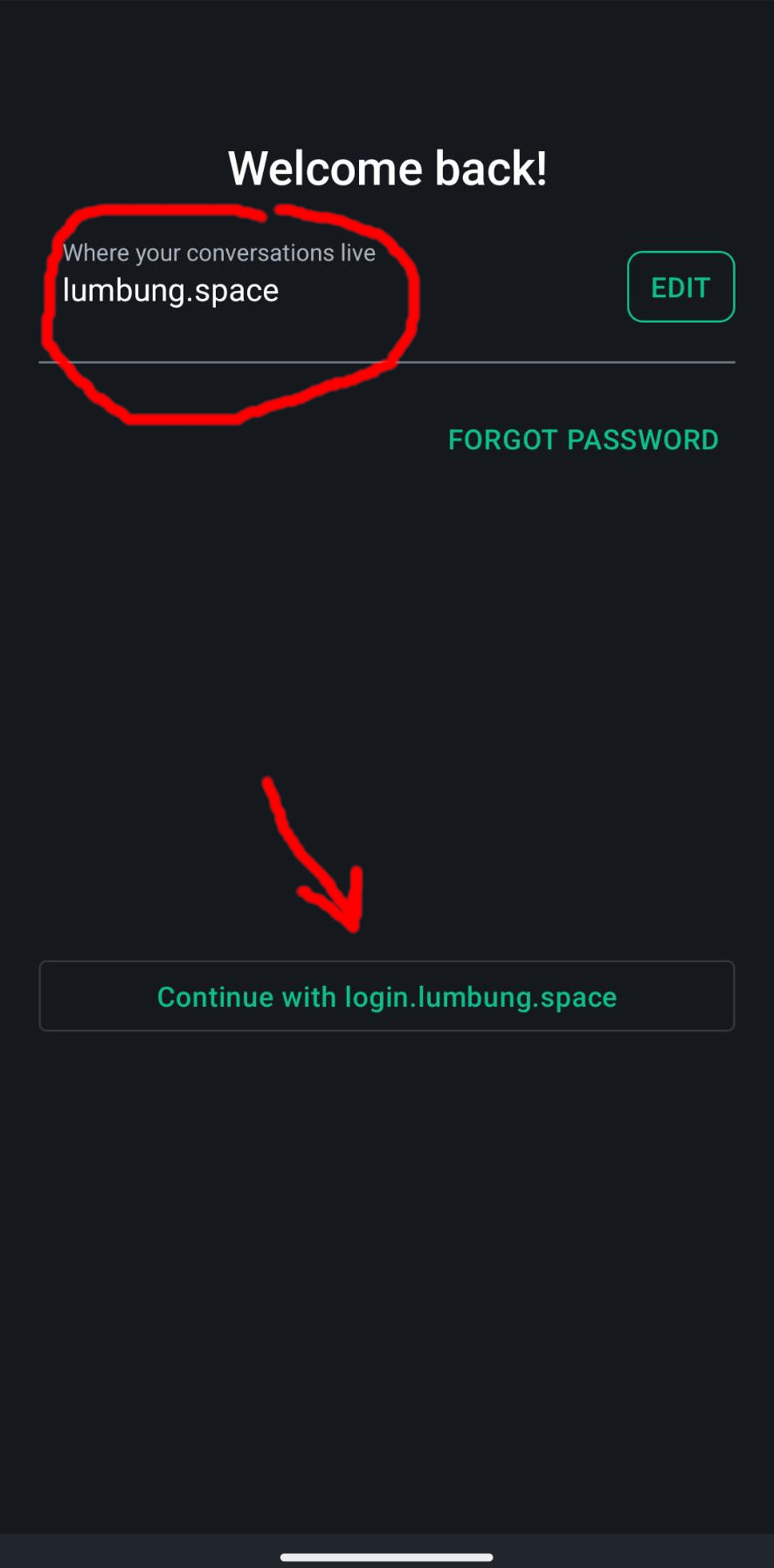
In the next screen press the button that says “Continue with login.lumbung.space”
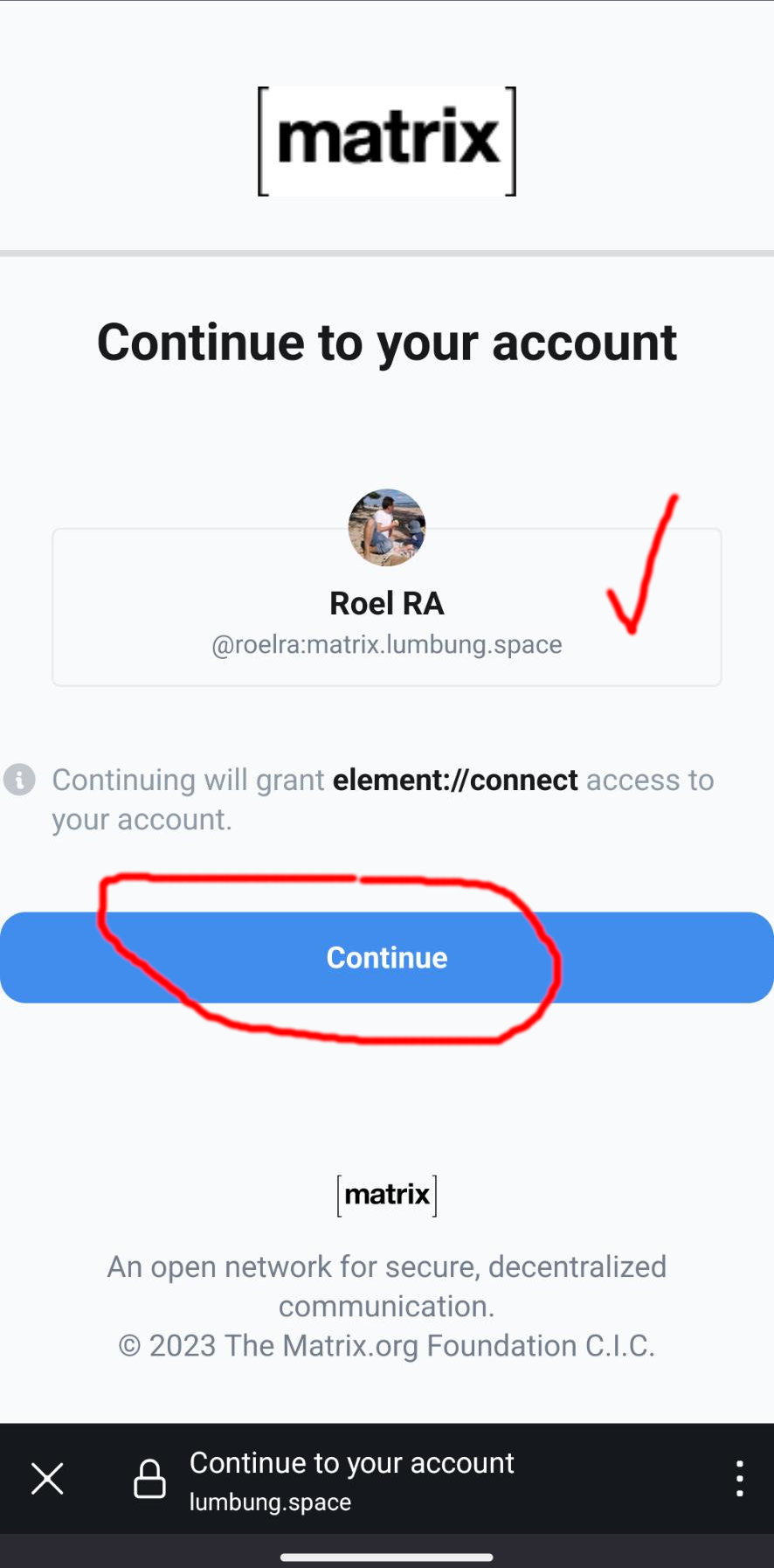
On the final screen it will show your account and username. Press continue to got the chat. Don’t forget to say Hi in the nongkrong room.
How do I see what rooms are in space?
Select the space in your matrix client and choose “Manage & explore rooms”.
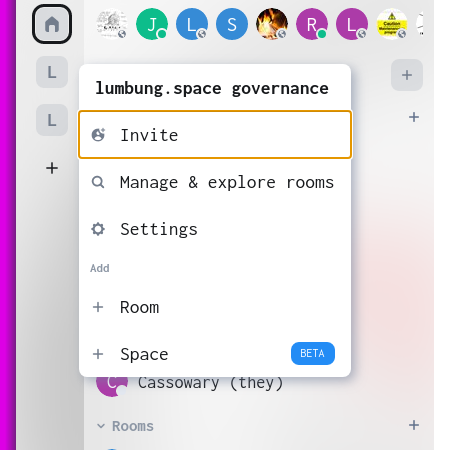
Click "Manage & explore rooms"
Then you can see the rooms, their descriptions and join which ones you like.
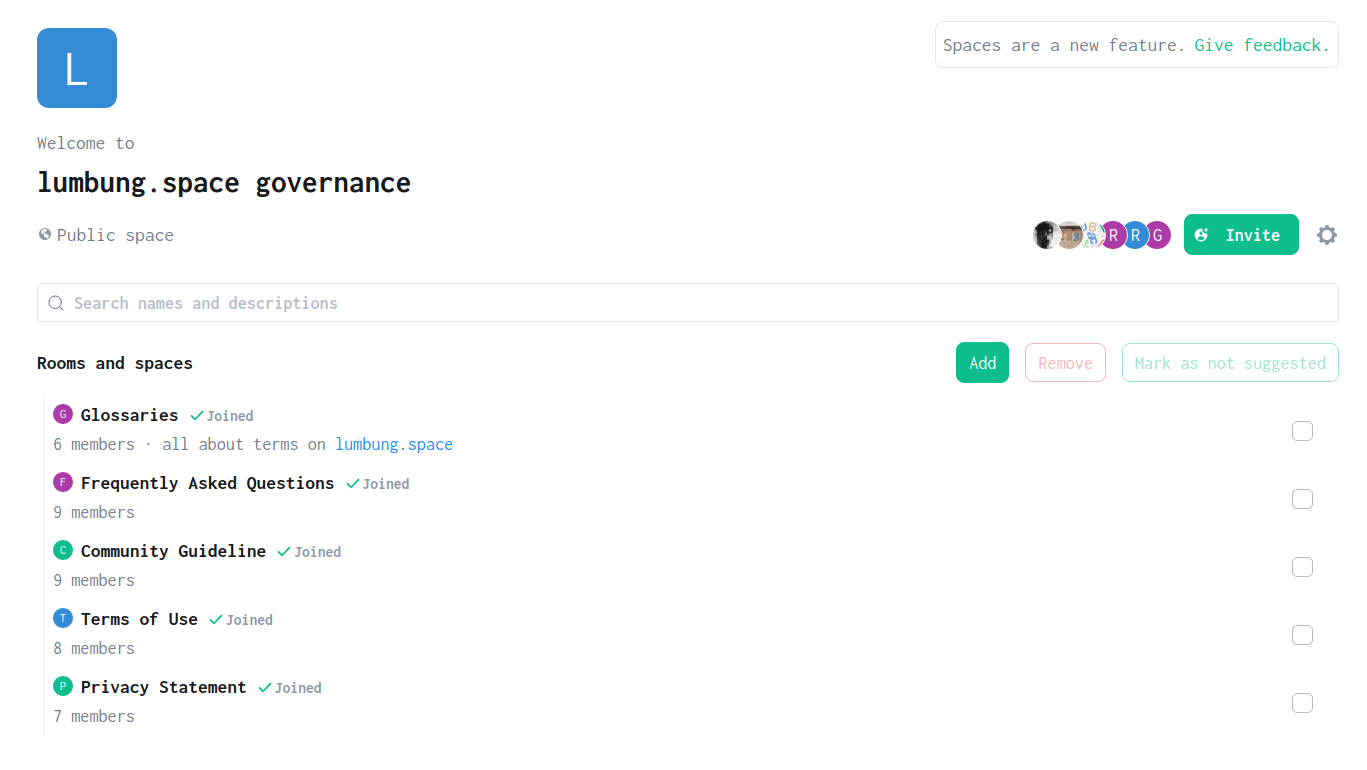
Room names, descriptions & ability to join
How do I start a video call?
The buttons to start an audio only call or a audio/video call are in the top right-hand corner:

Phone icon = audio only, Video icon = audio + video
Are all conversations encrypted?
By default, private 1-to-1 conversations are encryped. All group chats are not. You can change this in the room settings.
Using multiple matrix clients
If you want to use multiple clients (e.g. desktop + phone), you need to start using the “Secure backup” feature. This helps you keep your message history for private chats. It means keeping an additional password for your account so that your encrypted messsages can be shared between your different clients. Here is a guide on how to do this which explains the process in more depth.
How do I invite friends to my video calls?
If you want friends to join your video call, which you started from inside matrix, you can still invite them. They do not need an account to join. You can click the usual invite button from the Jitsi interface and give them a link.
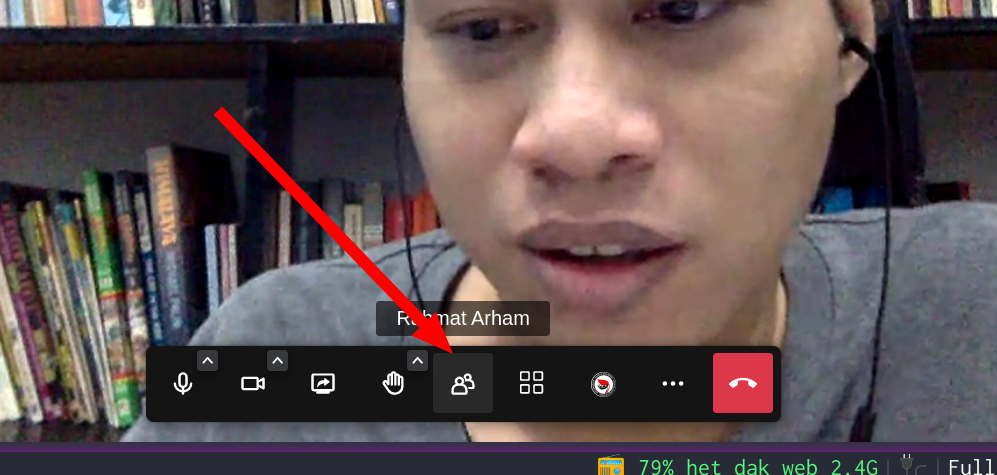
Click here to find the "Invite more people" button
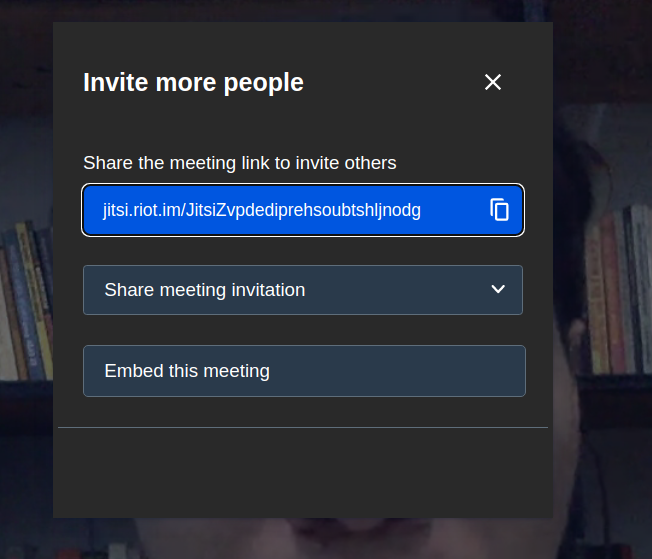
Share this link
How do I make someone admin of a space?
The process is a little complicated.
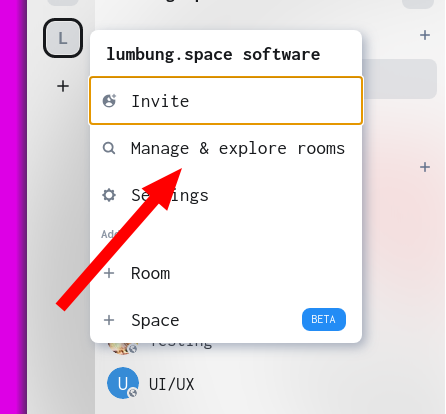
Click "Manage & explore rooms"
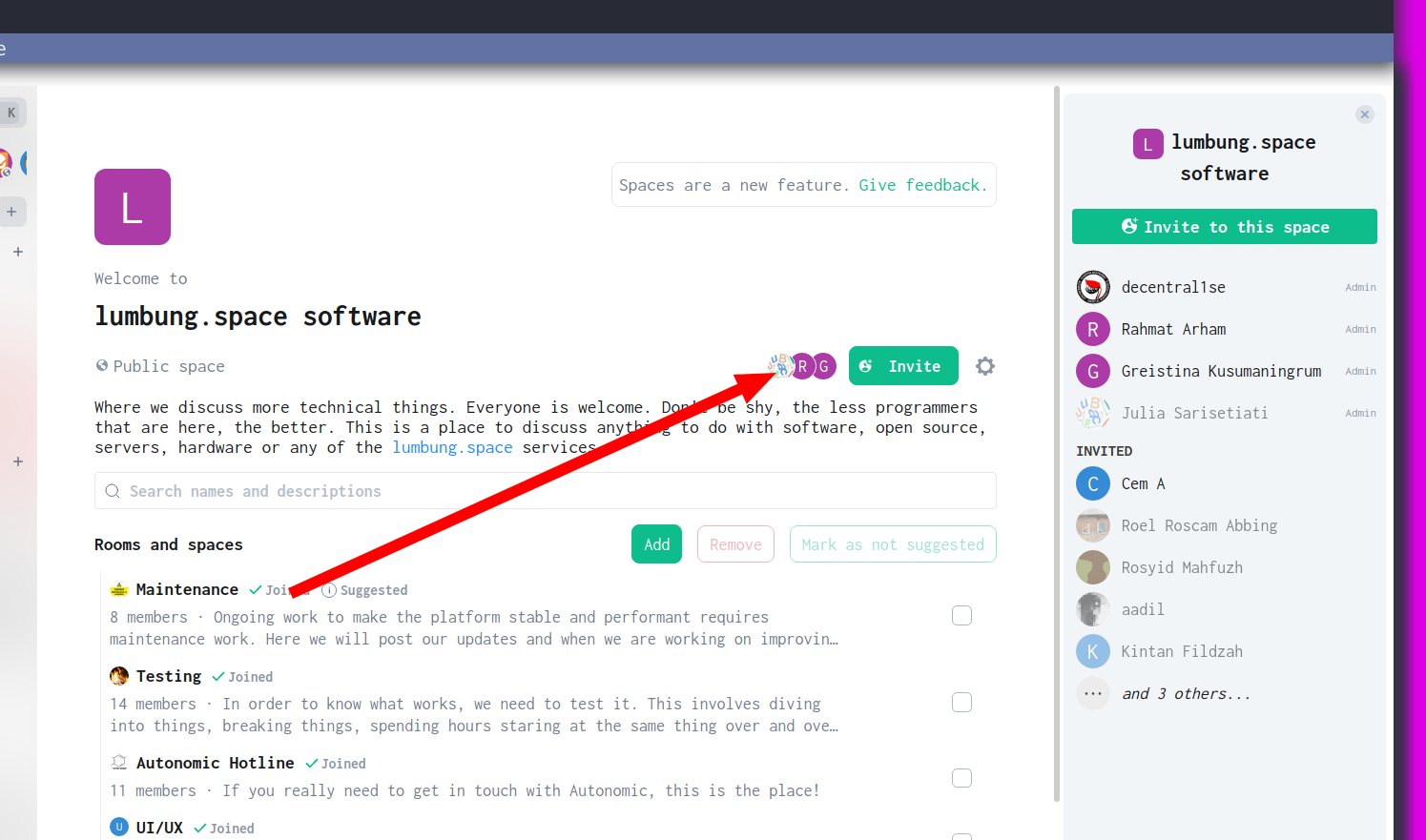
Click on the users listing
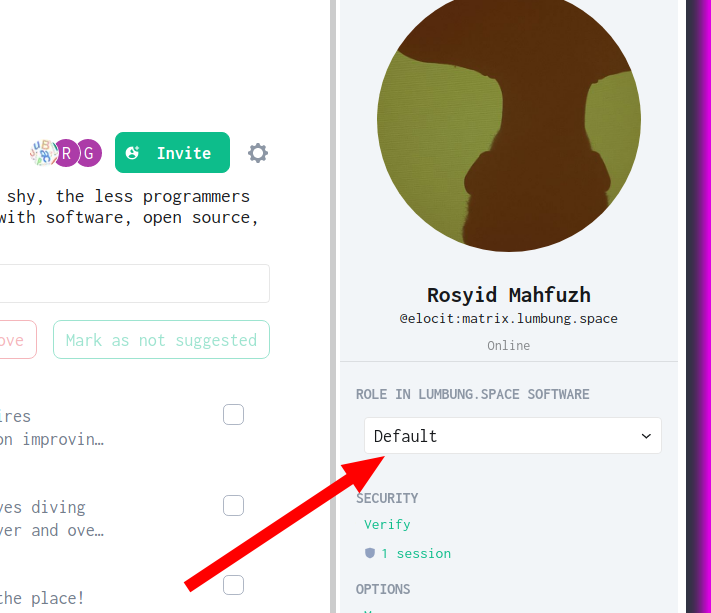
Change the role via this menu to "admin"
How are the spaces & rooms organised?
lumbung.space home
nongkrong
Film & TV
Research on / for online communities
Calls & Opportunities
Requests!
lumbung.space software
Software
Testing
Maintenance
UI/UX
Hotline with Autonomic :)
lumbung.space governance
Community Guidelines
Frequently Asked Questions
Glossaries
Privacy Statement
working group
note: the people who are mentioned below are the admin of the room, so the admin will invite their working group's member.
publication - frd, ameng, andrea, eric beltran
kios - ajeng, tyuki
gallery - lara, lydia
harvest - gertrude, cem, sari, Lara, frd
where is the art - lydia, lara
radio - gregorie, minerva, alain, gözde, malene, torus
film - kasia, cem, felipe, lara
hosting - sari, ajeng, gertrude, lydia, kasia, cem, tyuki, lara, jara
meydan - erby, kasia, ameng, frd, Lara, ayse
rurukids - gözde, daniella
land - gertrude, ismal, fernando
lumbung.space - sari, rahmat, luke, roel, greistina, reinaart
currency - yazan, fernando, matze
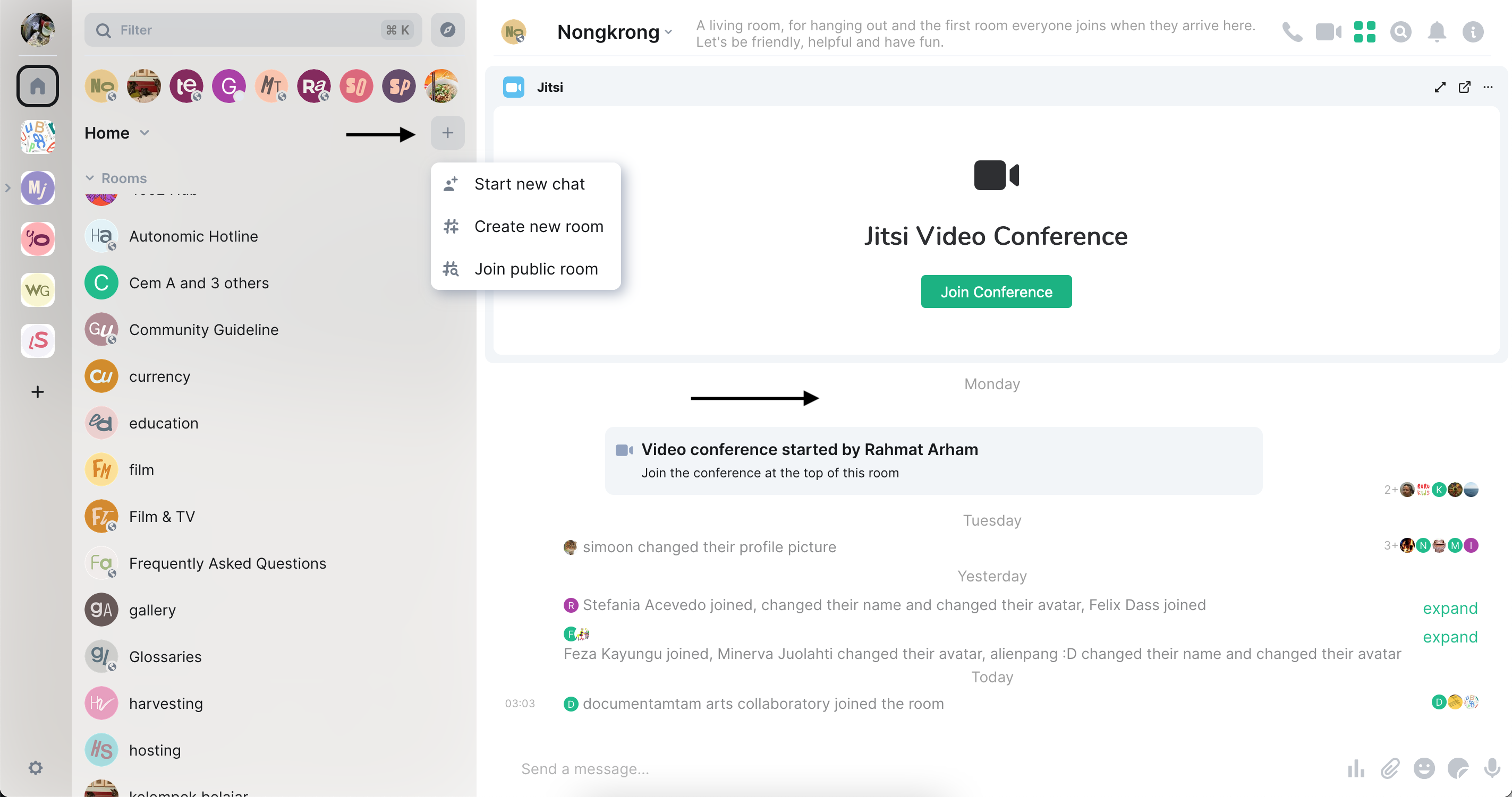
How to Make a new chat room, create new room, or join public room?
You can create a new room by click "+" and you can find those 3 options. Just click what do you want to do
How to make a public room?
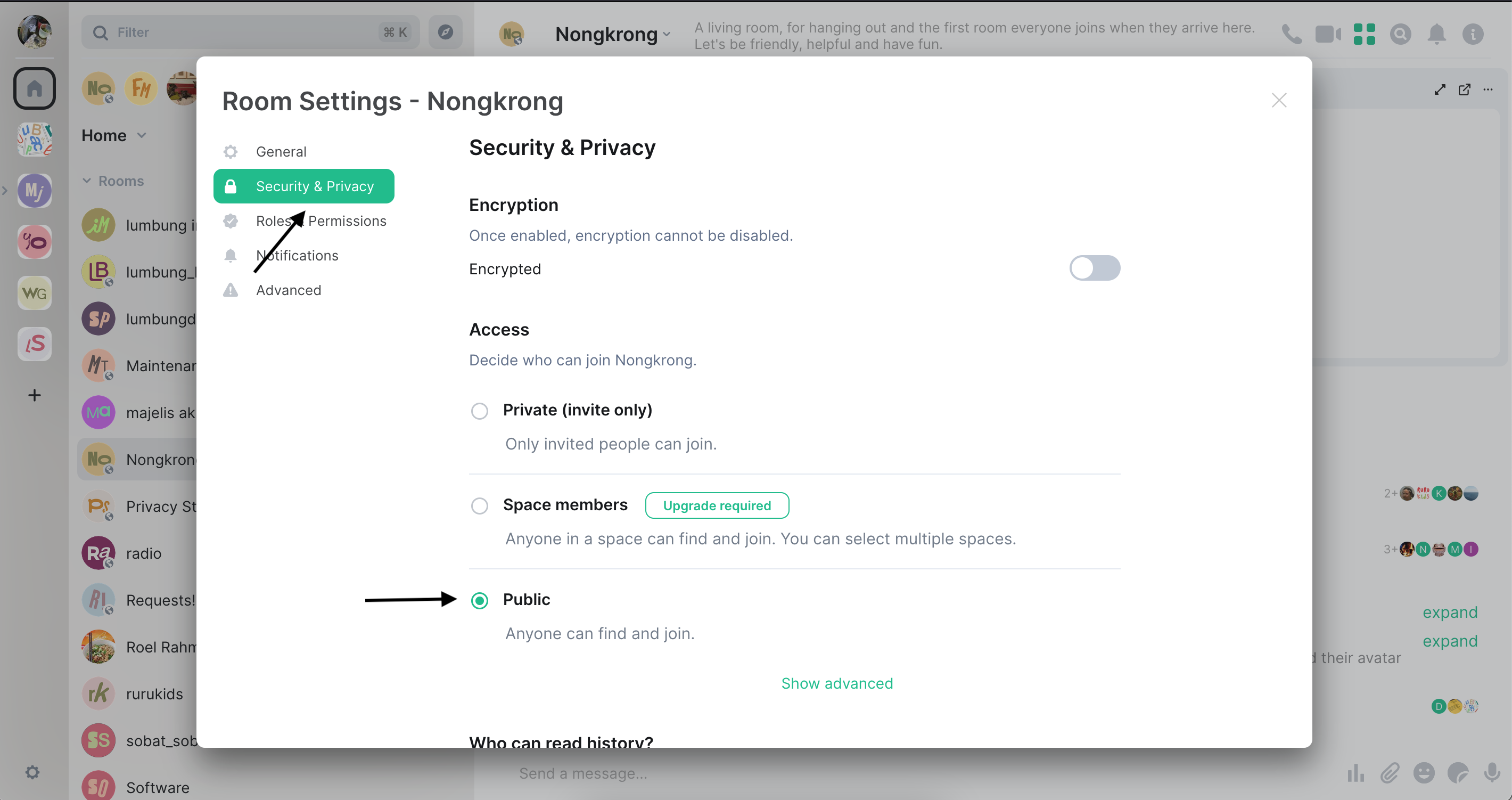
Once you create a new room, you can also make it as public room. So everyone can find and join the room that you've made.
To make it public room. Click the name of your room and find "Settings"
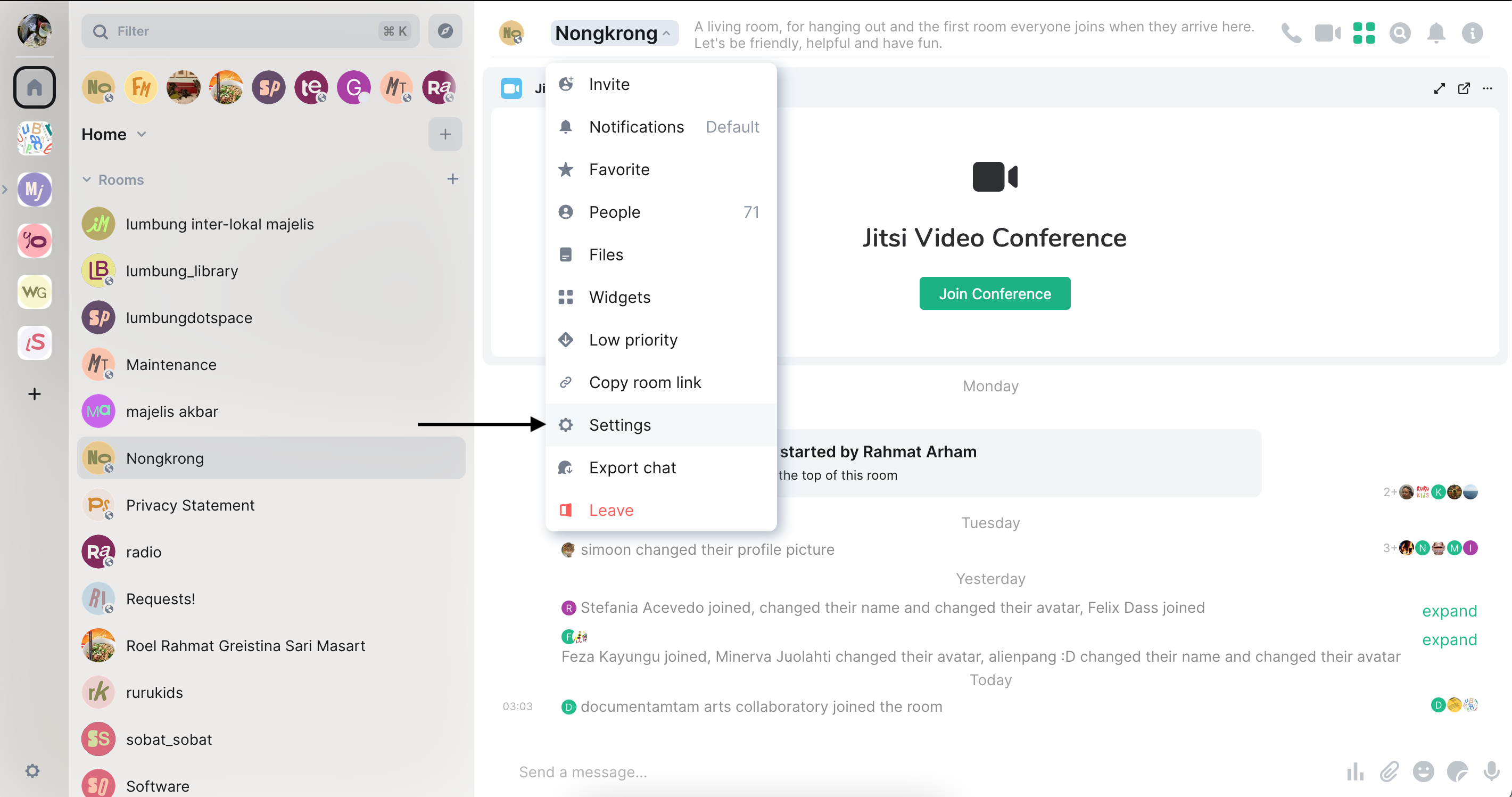
Click "Security Privacy" then on the options of Access choose "Public"